
Features

What Spool does, on the screens it does it.

Every screen below is a capture or a recording of the app itself. Where the app's own help pages answer the question, the entry ends with that answer.

Inventory

Adding spools, arranging the shelf, and what happens when a roll runs out.

See it on the home page
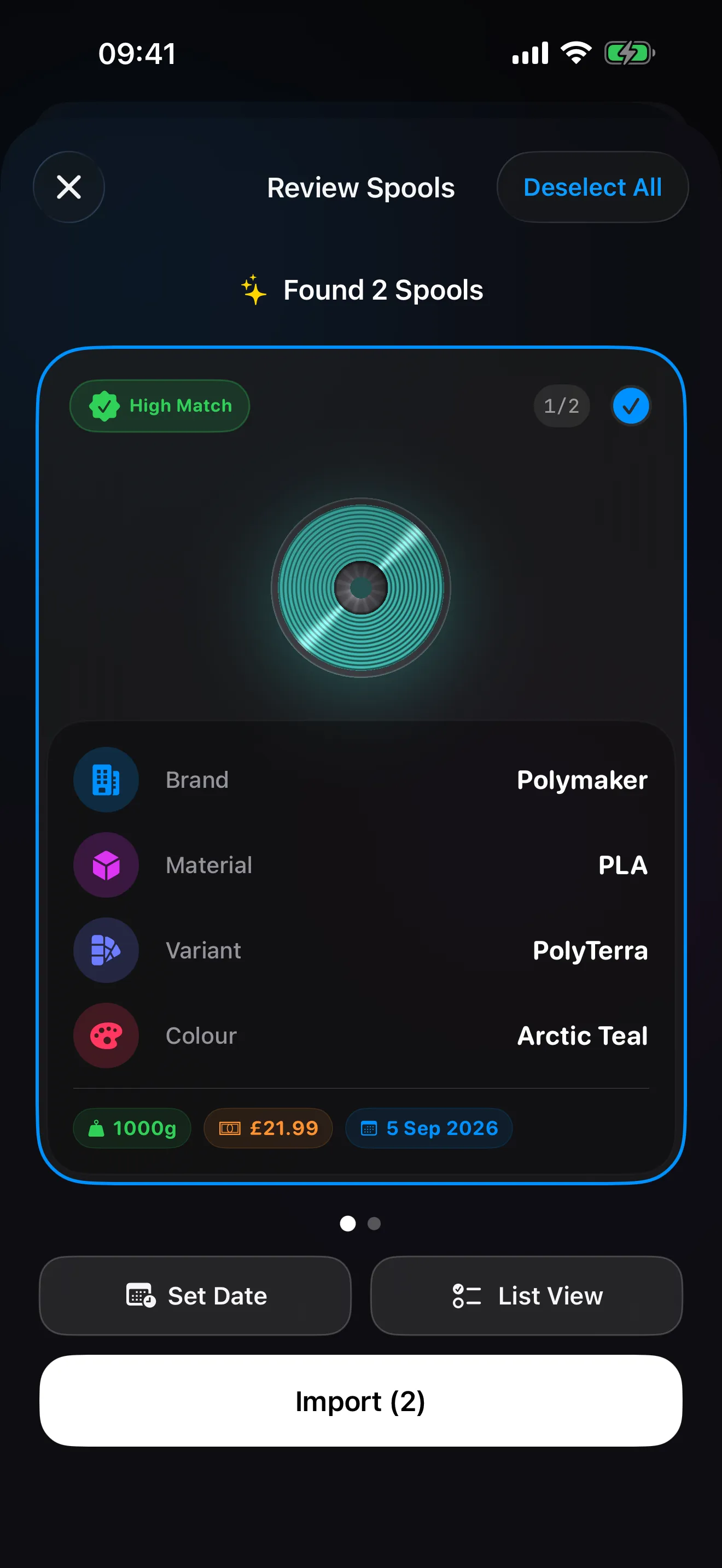
Smart Import in Spool: two filament labels read into review cards with brand, material, colour and a confidence badge on each

Smart Import

Smart Import reads the label text and runs it against Spool's filament database, with on-device Apple Intelligence extraction on devices that support it, all private and offline. Every result carries a confidence badge, so a strong match needs no editing and a partial one is checked before it lands on the shelf. On iPhone, photos of order confirmations, receipts and label batches go through the same review carousel, several spools at a time.

From the help pagesWhat is Smart Import?

Smart Import uses your camera or photos to read filament labels and match them to known products. It recognises the label text, then runs three matching strategies side by side: a fuzzy match against Spool's filament database, on-device Apple Intelligence extraction on devices that support it (all private, all offline), and pattern matching for technical strings like 'PLA+'. You get a confidence badge on each result: green for a strong match, orange for partial, and suggestions if it's uncertain.
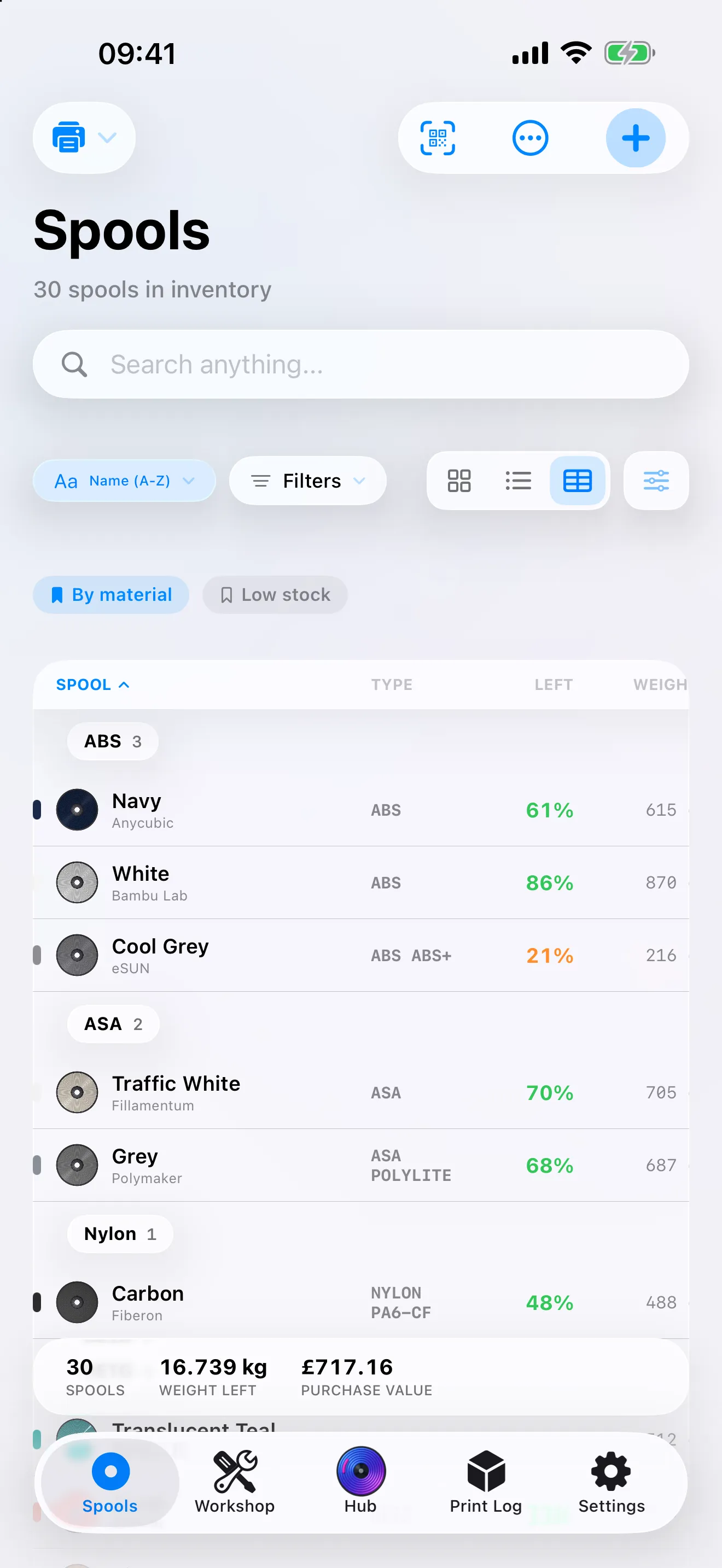
The Spools spreadsheet grouped by material, with the saved views By material and Low stock above it

Saved views, spreadsheet and grouping

Grid, list and spreadsheet for the same shelf. The spreadsheet shows the columns you choose, sorts by any of them, groups and totals the rows, and exports what is visible as CSV. A Saved View keeps a whole arrangement, layout, sort order, grouping, card size, columns and filters, and tapping its chip brings it back.

From the help pagesWhat are Saved Views?

A Saved View keeps a whole dashboard arrangement under a name: layout, sort order, grouping, card size, spreadsheet columns, and the active filters. Tap 'Save Current as View' in the view options menu, then switch between views with one tap on their chips. Saved Views are free, with no limit on how many you keep, and each device keeps its own set.

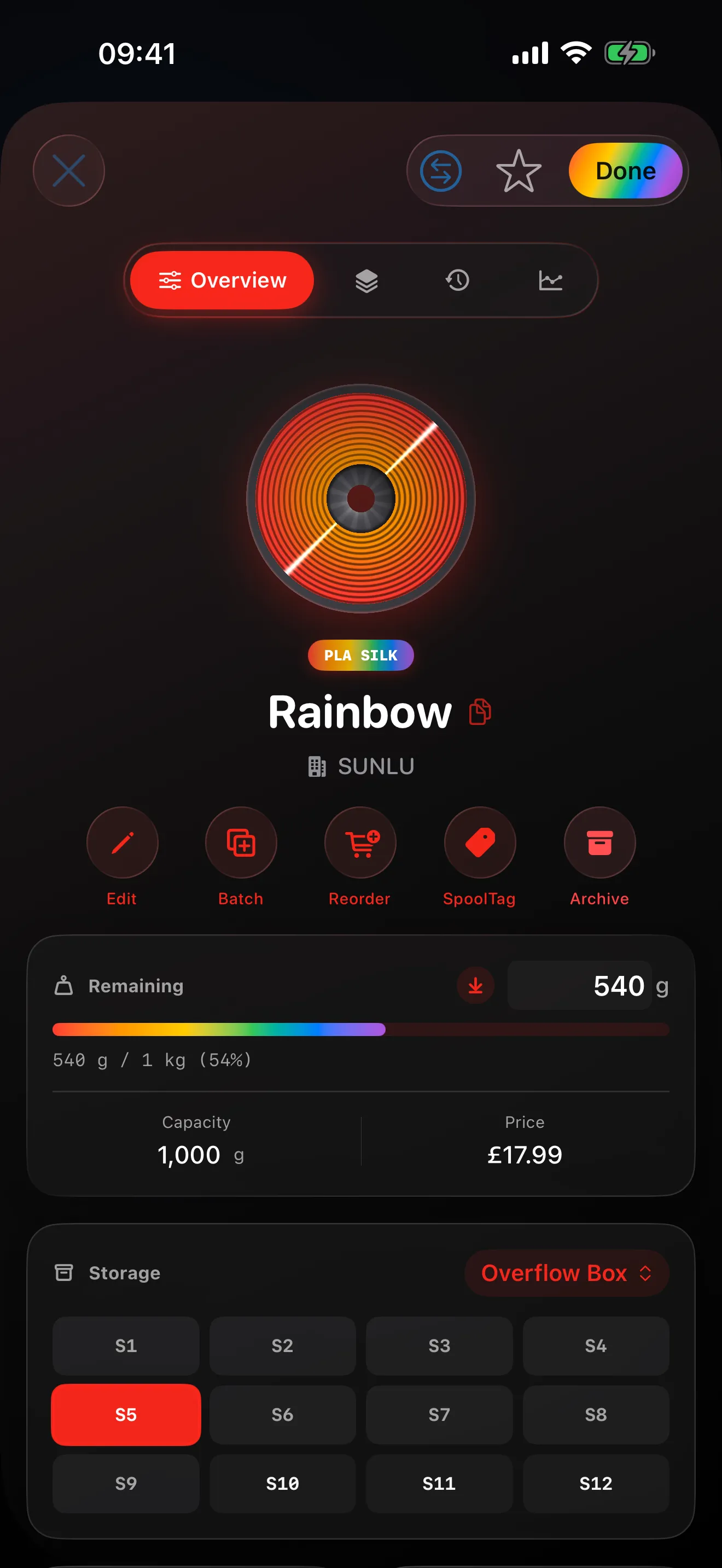
The detail of a rainbow silk spool in Spool: the material pill and the remaining bar carry the whole run of colours, the balloon tinted from the leading swatches

Multicolour spools

A spool with several colours is stored with each swatch. The material pill and the remaining bar show the whole run of colours, and the spool's balloon is tinted from the leading swatches rather than one averaged tone, so a silk rainbow reads as one at a glance. For multicolour prints from Bambu Cloud, each colour slot gets its own spool suggestion and its own weight deduction.

From the help pagesDoes it handle multicolour prints?

Yes. Each colour slot is matched independently. A 4-colour print will deduct the correct weight from 4 different spools.

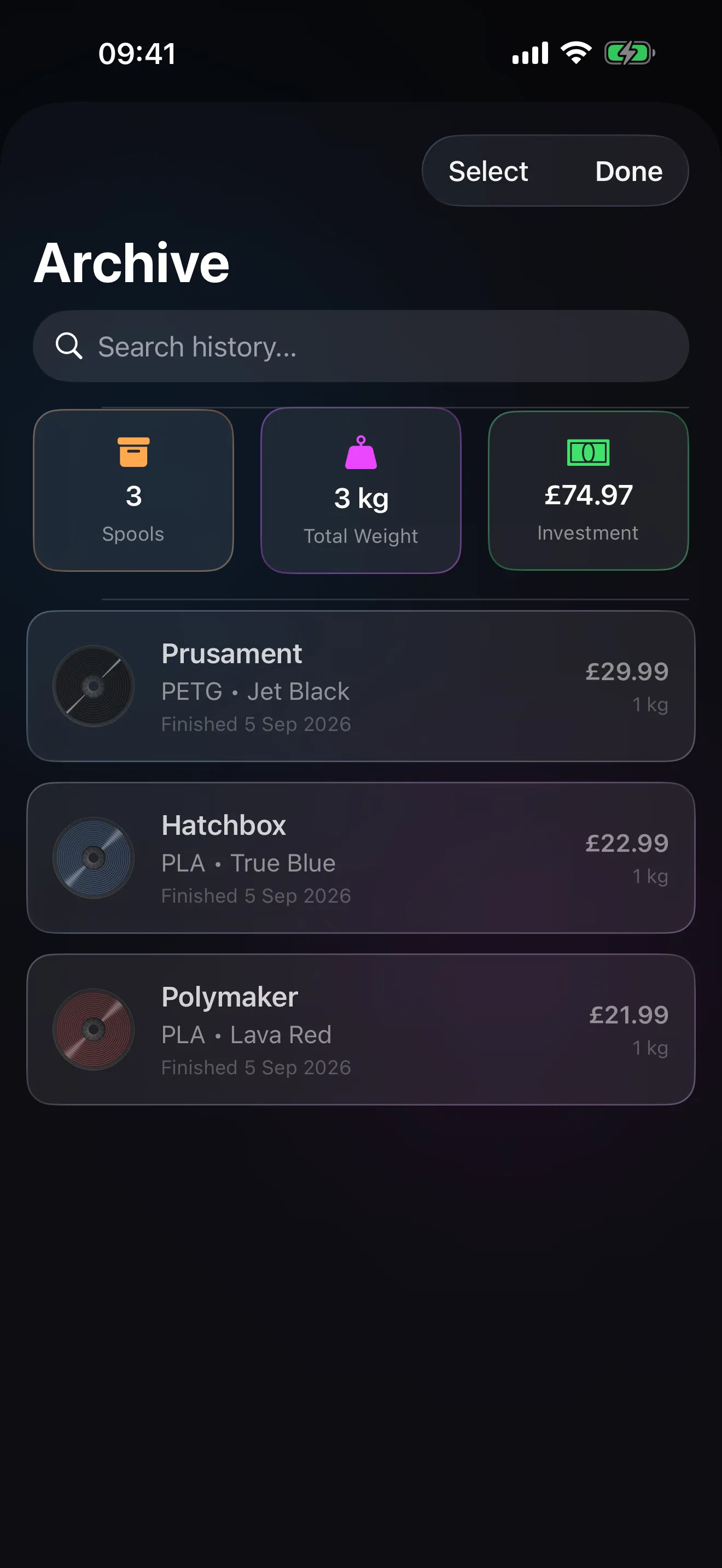
The Archive in Spool listing finished spools

Archive

When a print log takes a spool to zero, it moves out of the active list on its own, and you can archive one by hand from its detail actions. Archived spools keep their print history and cost data in the analytics. Find a bit more filament on a finished roll and Recover brings it back, subject to the free spool limit.

From the help pagesWhen does a spool get archived?

Spool auto-archives a roll when a print log reduces its remaining weight to zero. You can also archive manually from the spool detail actions. Archived spools are hidden from the active list, but their history and cost data remain in analytics.

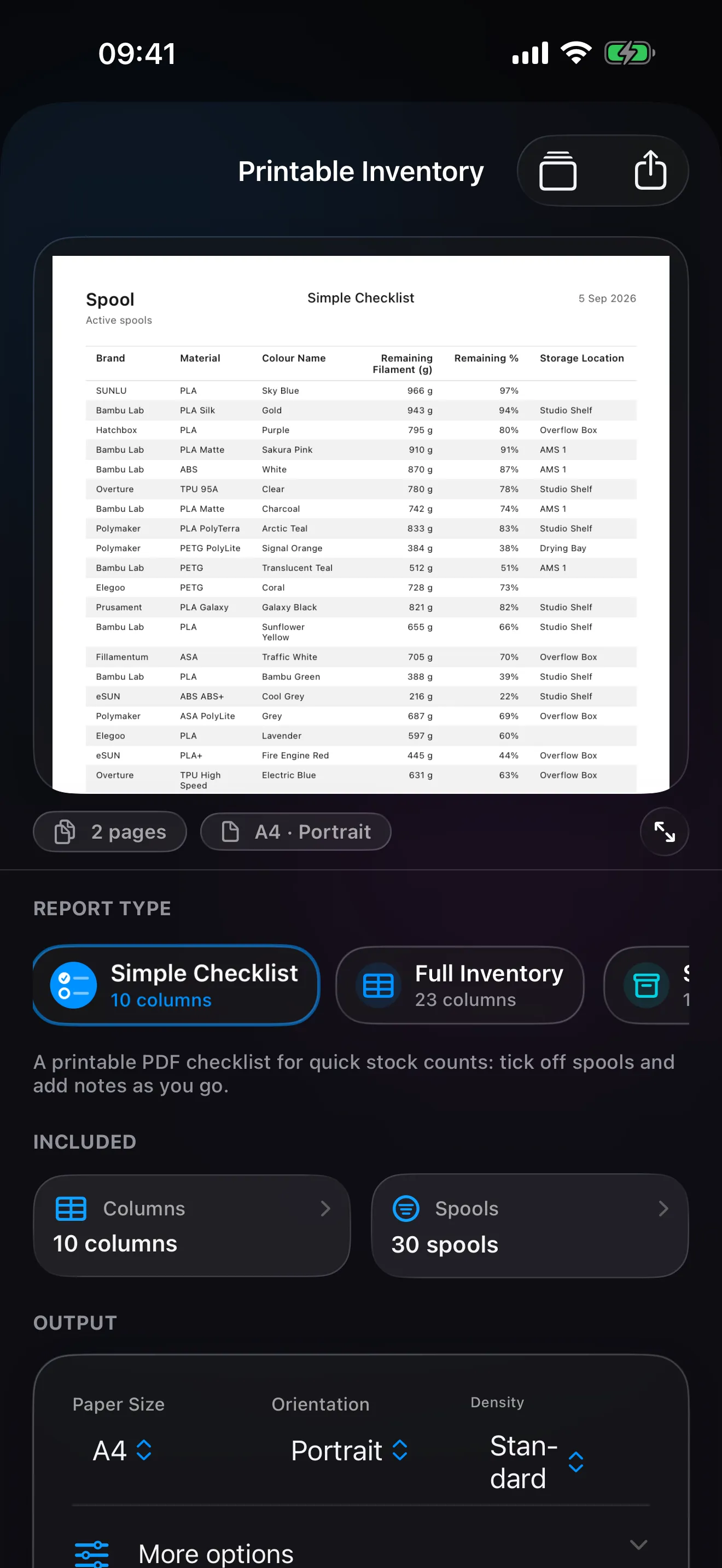
Printable Inventory in Spool: a report preview of the spool inventory with its report type, columns and output controls

Inventory reportsPro

Printable Inventory builds a document from your spools for stock counts, audits or sharing your shelf with someone who does not use Spool. Pick a preset, choose and reorder the columns, limit the report to certain spools and let Smart Fit check that the layout suits the paper. Configuring a report is free; the PDF preview, print and share need Pro.

From the help pagesWhat is Printable Inventory?

A PDF report builder that turns your spool inventory into a printable or shareable document. Useful for stock counts, audits, expense reviews, end-of-quarter snapshots, or sharing your shelf with someone who doesn't use Spool. Configuring a report is free; the PDF preview, print, and share require Pro.

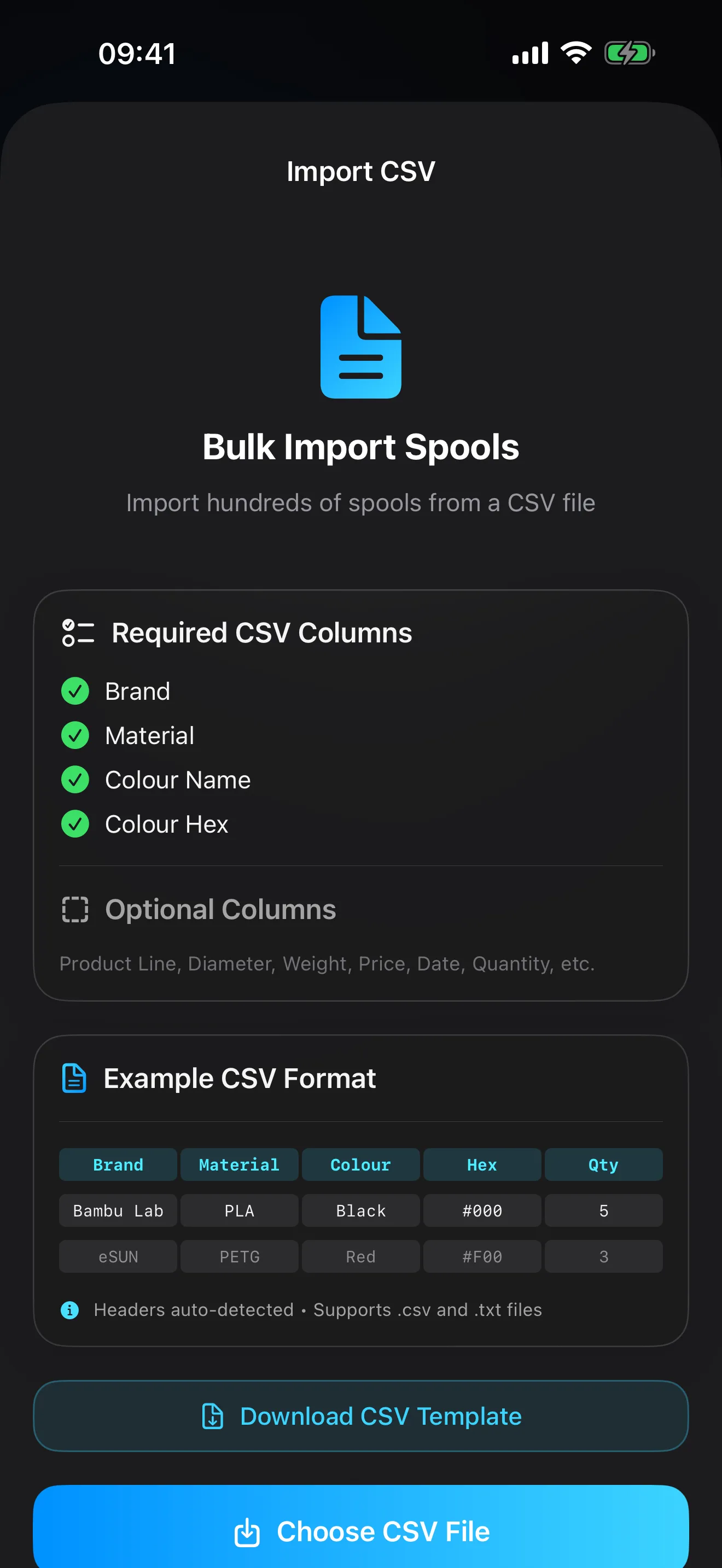
CSV import in Spool: the required columns, an example row and the template download

Backups, CSV import and export

Export Data in Settings, Data Management writes your spools, printers, storage locations, print logs, drying history, shopping list, categories, tags and electricity rate history to a JSON or .spoolbackup file, and Import Data restores it. CSV import moves an inventory from another app or a spreadsheet in one go. Both stop at the spool limit on the free tier.

From the help pagesHow do I back up my data?

Go to Settings → Data Management → Export Data. You can export as JSON (human-readable) or as a .spoolbackup file. The export includes your spools, printers, storage locations, print logs, drying history, shopping list, categories, tags, and electricity rate history.

More questions
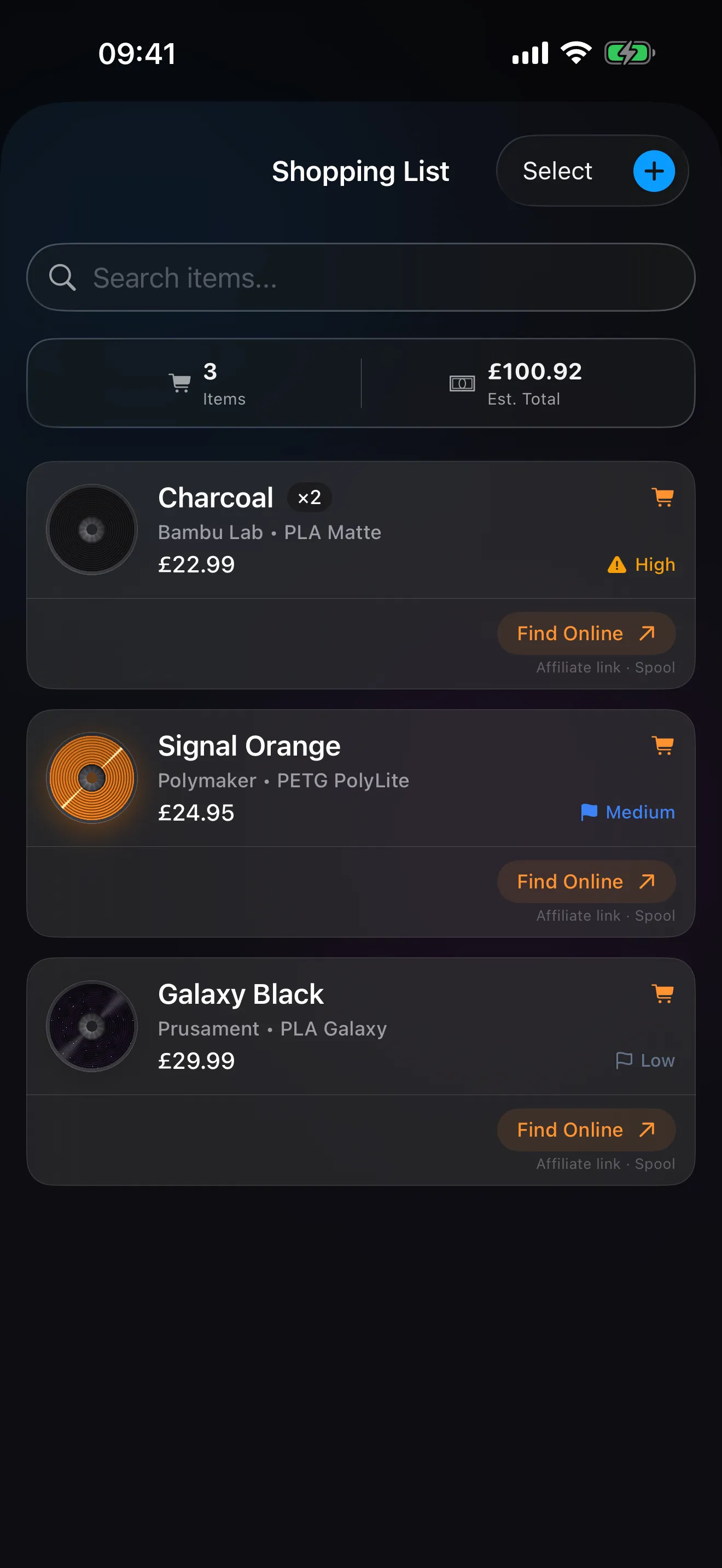
The Shopping List in Spool with its summary card and items

Shopping list

Add items by hand or pick spools from the shelf to reorder. Each item tracks brand, material, colour, quantity, estimated price, priority and an optional purchase link, and a summary card totals the list. Smart Restock checks the inventory when you open the list and offers any spool that is running out and not already on it. When the box arrives, Add to Inventory turns the items into spools.

From the help pagesWhat is the Shopping List?

A built-in procurement tool for planning filament purchases. Add items manually or pick spools from your existing inventory to reorder. Each item tracks brand, material, colour, quantity, estimated price, priority, and an optional purchase link. A summary card at the top shows your total item count and estimated spend.

Printing

Getting prints into the log and learning from them.

See it on the home page
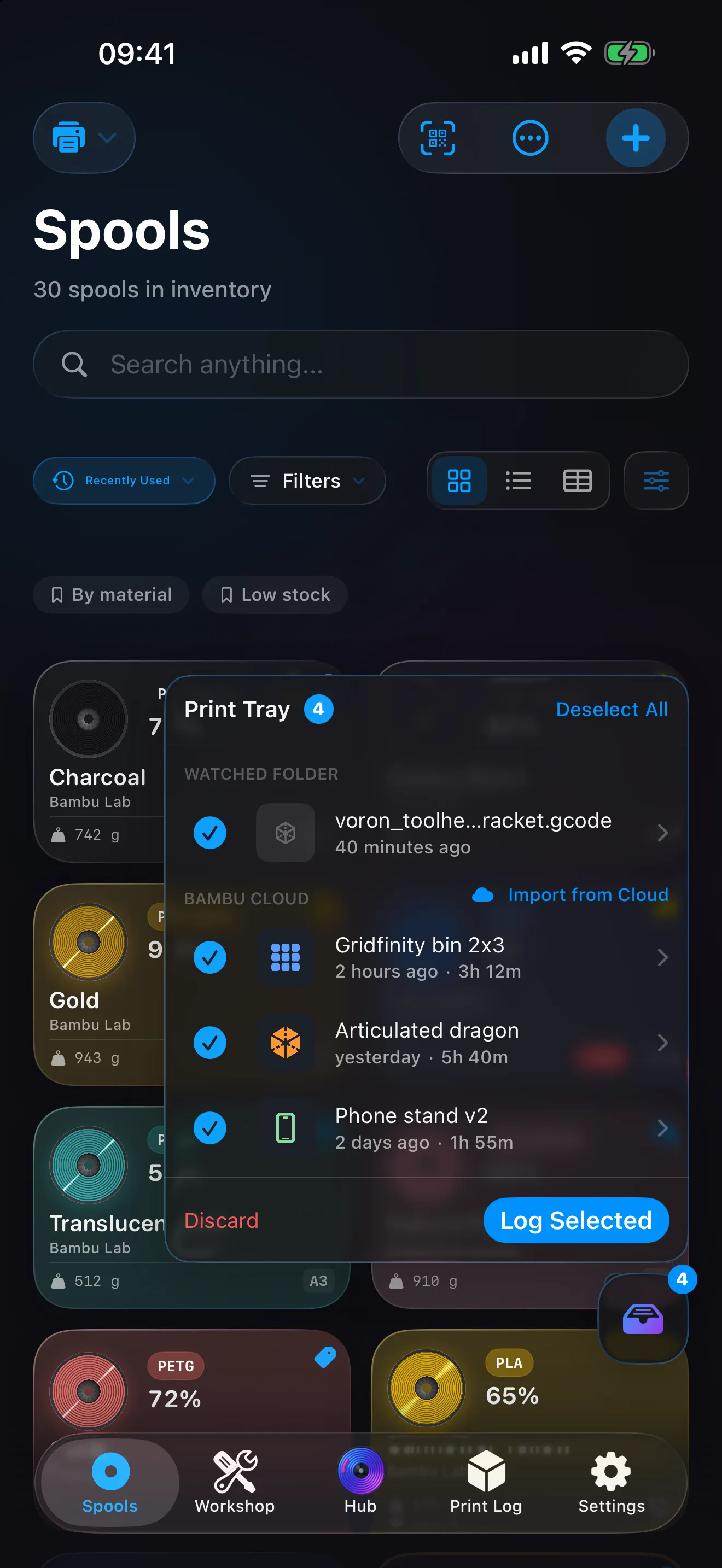
The Print Tray open over the Spools wall: one sliced file from a watched folder and three finished Bambu Cloud prints, selected, with Log Selected

Print Tray

A quiet holding area for prints waiting to be logged: recent finished Bambu Cloud prints you have not logged yet, and sliced files that arrived through a Mac's watched export folder. When something is waiting, a small floating chip appears. Tap it to open the tray, tap a print to log it, or select several and log them together. The chip hides itself whenever the tray is empty.

From the help pagesWhat is the Print Tray?

A quiet holding area for prints waiting to be logged: sliced files that arrived through a Mac's watched folder, and recent finished Bambu Cloud prints you have not logged yet. When something is waiting, a small floating chip appears; tap it to open the tray, then tap a print to log it. The chip hides itself whenever the tray is empty. A file you share to Spool yourself opens the review sheet straight away instead of waiting in the tray.

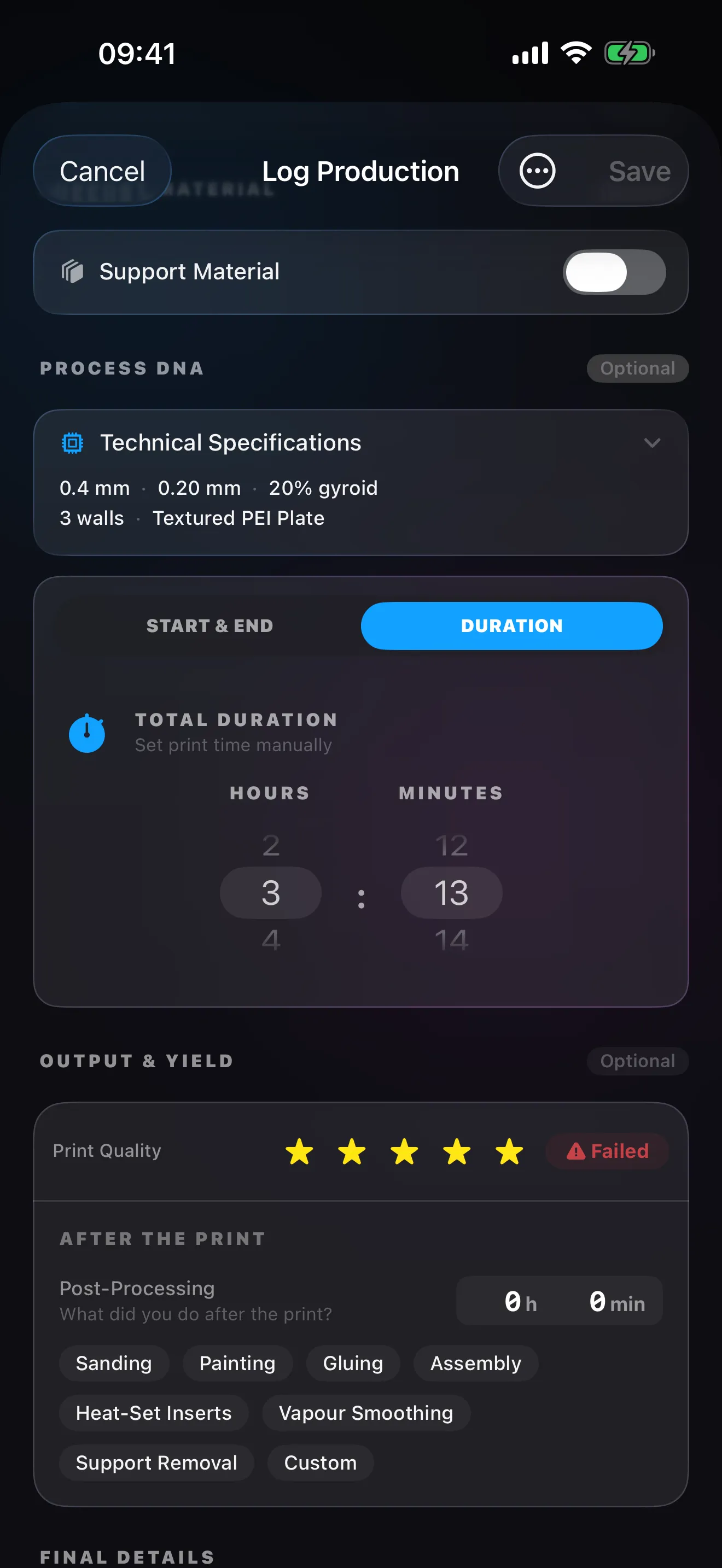
A sliced file read into Spool's Log Production form: the print settings and duration filled in from the file, ready to save

Sliced file import

Share a sliced file from Files, AirDrop or Mail and choose Spool: the print's name, duration, filament weight, material, colour and the slicer's preview image are read from what the file carries. Spool detects the printer, links a spool from your inventory when the file's filament clearly matches one, and remembers your choice for next time. On a Mac, drag the file onto the window. Not every slicer's files can be read yet.

From the help pagesCan I import prints from a sliced file?

Yes. Share a sliced .gcode or .3mf file from Files, AirDrop, or Mail and choose Spool: the print's name, duration, filament weight, material, colour, and even the slicer's preview image are read from what the file carries, and Spool matches the filament to a spool in your inventory and remembers your choice for next time. Not every slicer's files can be read yet. On Mac, drag the file onto the Spool window or press \u{2318}O.

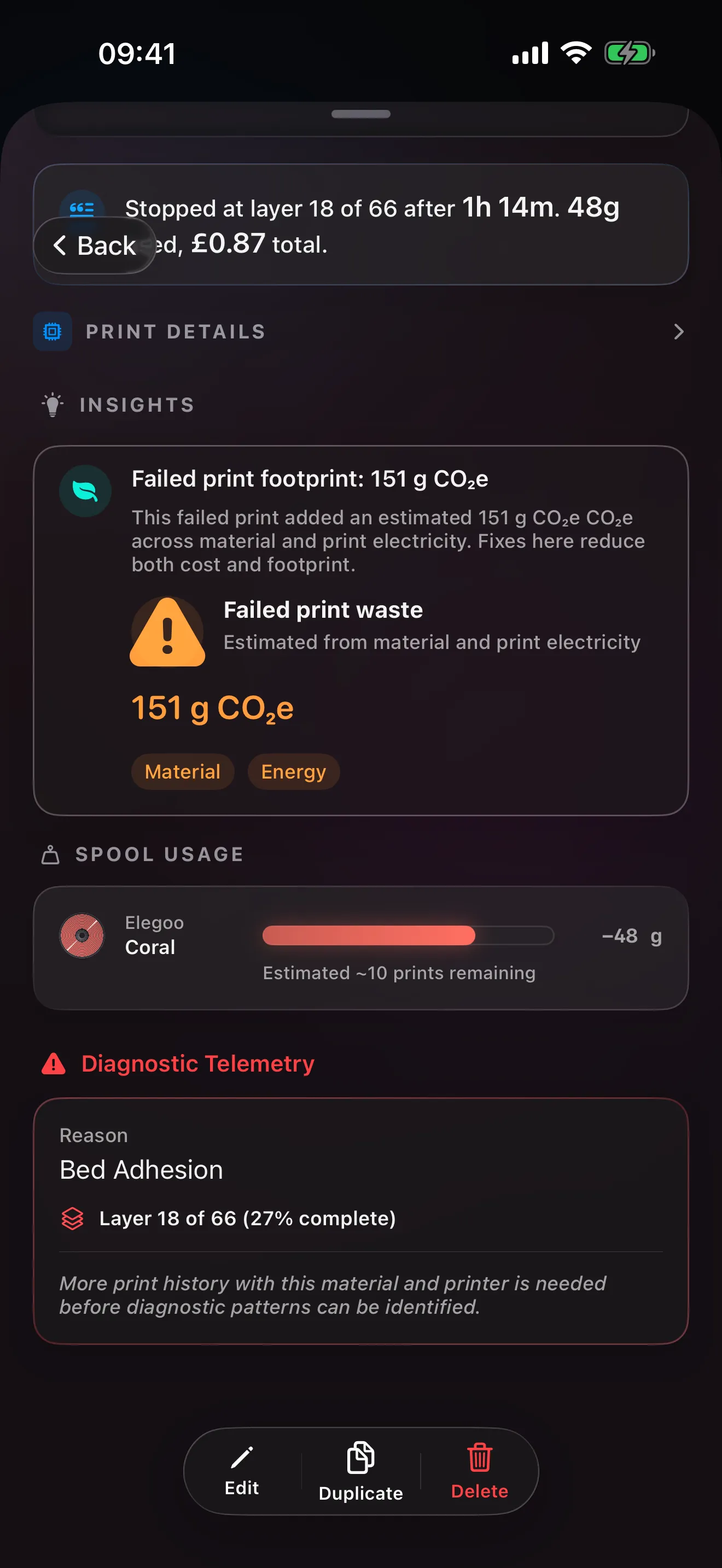
The Print Story of a failed print in Spool, scrolled to Diagnostic Telemetry: the failure reason and the layer it stopped at
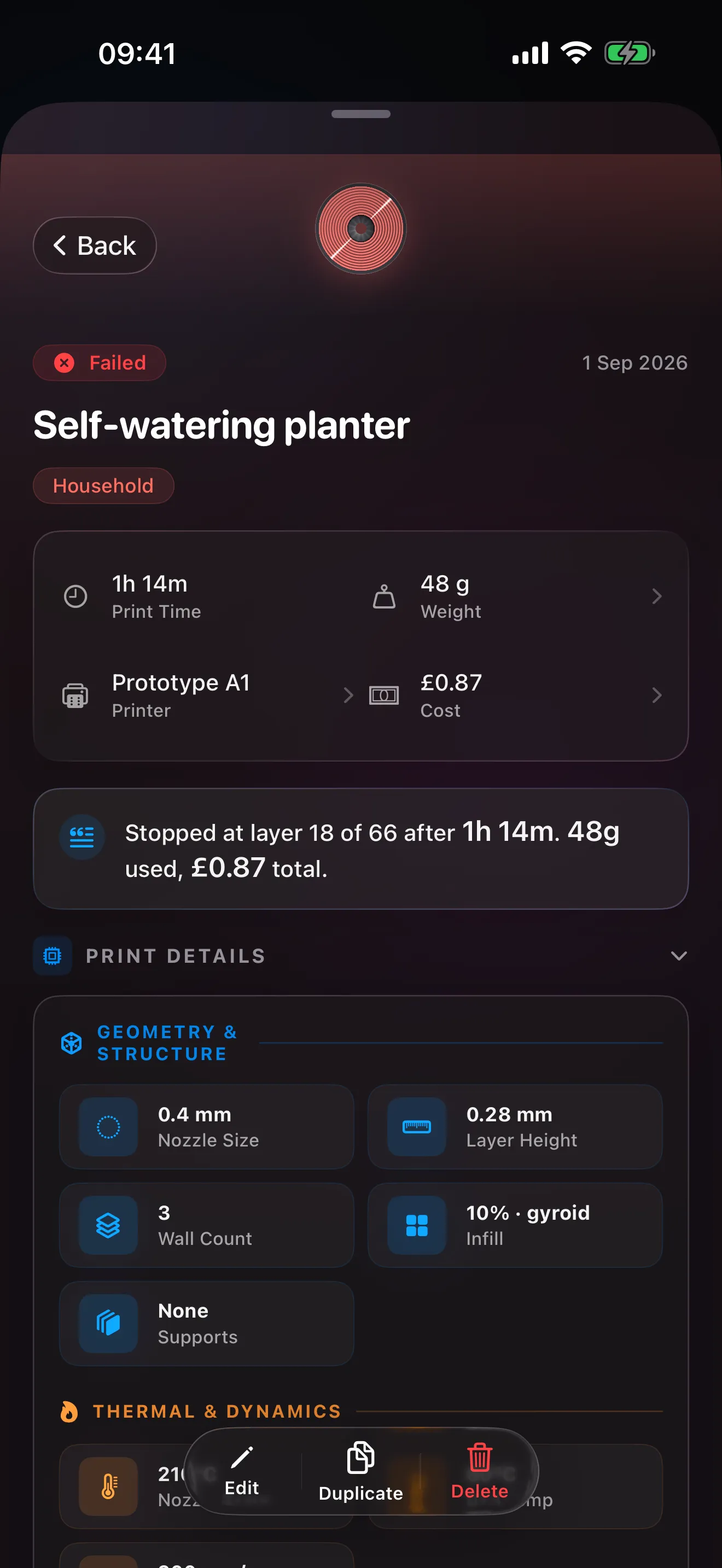
The same Print Story with Print Details expanded: nozzle, layer height, walls, infill, supports and temperatures

Print Story diagnostics

Every print has a story: what it cost, what it used and which settings worked. When a print fails, the Diagnostic Telemetry block records the reason and the layer it stopped at, then compares the result with the same material and printer in your history to say whether this is a one-off or a pattern that is forming. Print the same model again and, with Pro, the attempts line up as one lineage with the retries beside the success.

From the help pagesWhat is Print Story?

Every print in your log has a full story view. Tap any print to see a narrative summary highlighting the most notable aspect of that print, a Print Details matrix of all your recorded settings, spool gauges showing what this print used and what's left on each roll, and contextual insight cards that analyse the print against your complete history. If you've printed the same model name more than once, a lineage section shows the full history of attempts.

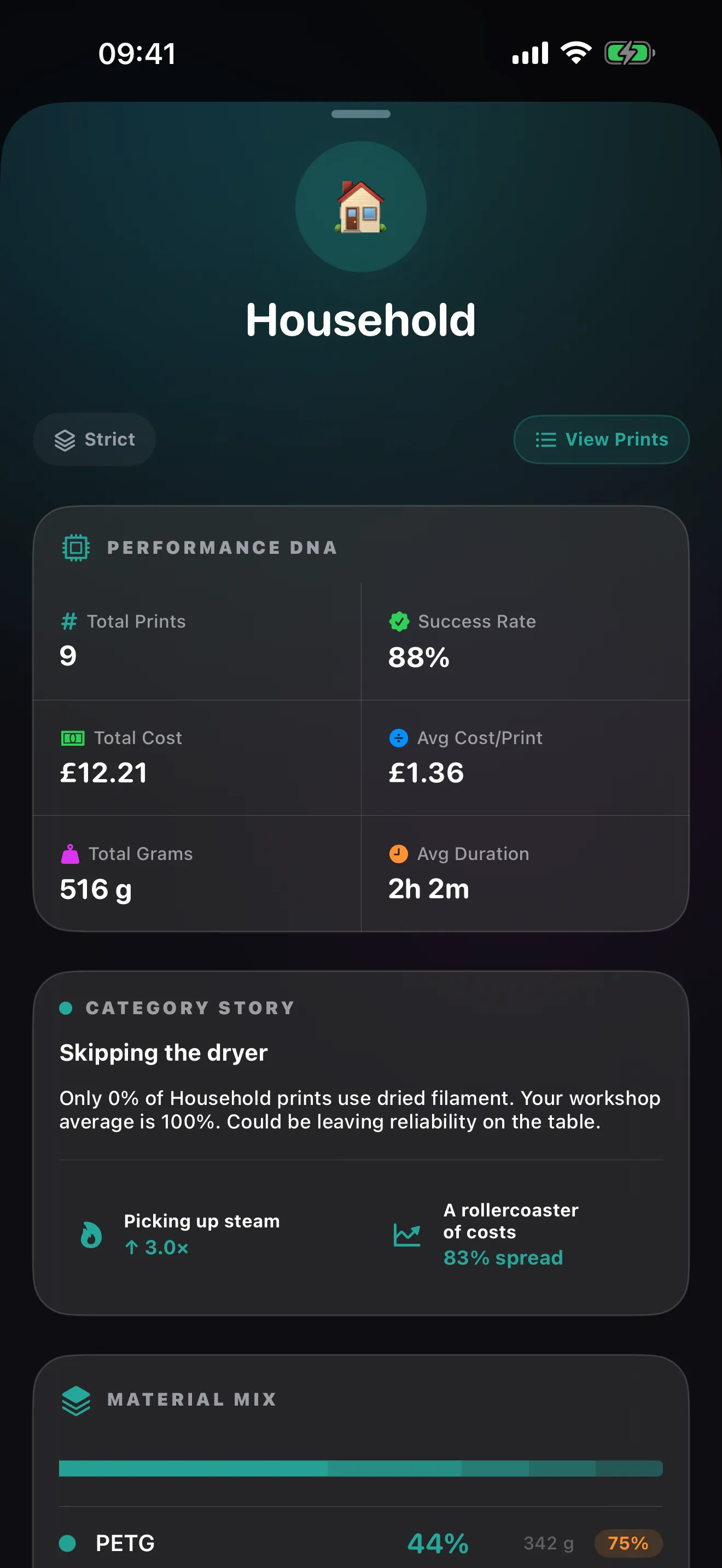
Category Insights in Spool for the Household category: Performance DNA, a Category Story insight and the material mix

Categories and their insightsPro

Categories keep the history organised: Spool ships with built-in defaults and you can adopt, hide or create your own. As you type a print name it suggests a category from a keyword library and from the prints you named that way before. Category Insights, a Pro feature with one category free to preview, shows each category’s prints, success rate, total and average cost and average duration, with comparisons across categories.

From the help pagesWhat is Category Insights?

Tap any category in Settings to see its analytics: total prints, success rate, total cost, average cost per print, and average duration in a Performance DNA grid, plus trend indicators and cross-category comparisons (e.g. 'Your Functional prints succeed 15% more than Art/Decor'). Category Insights requires Spool Pro, with one category free to preview. Keyword suggestions appear in the Manage Categories list.

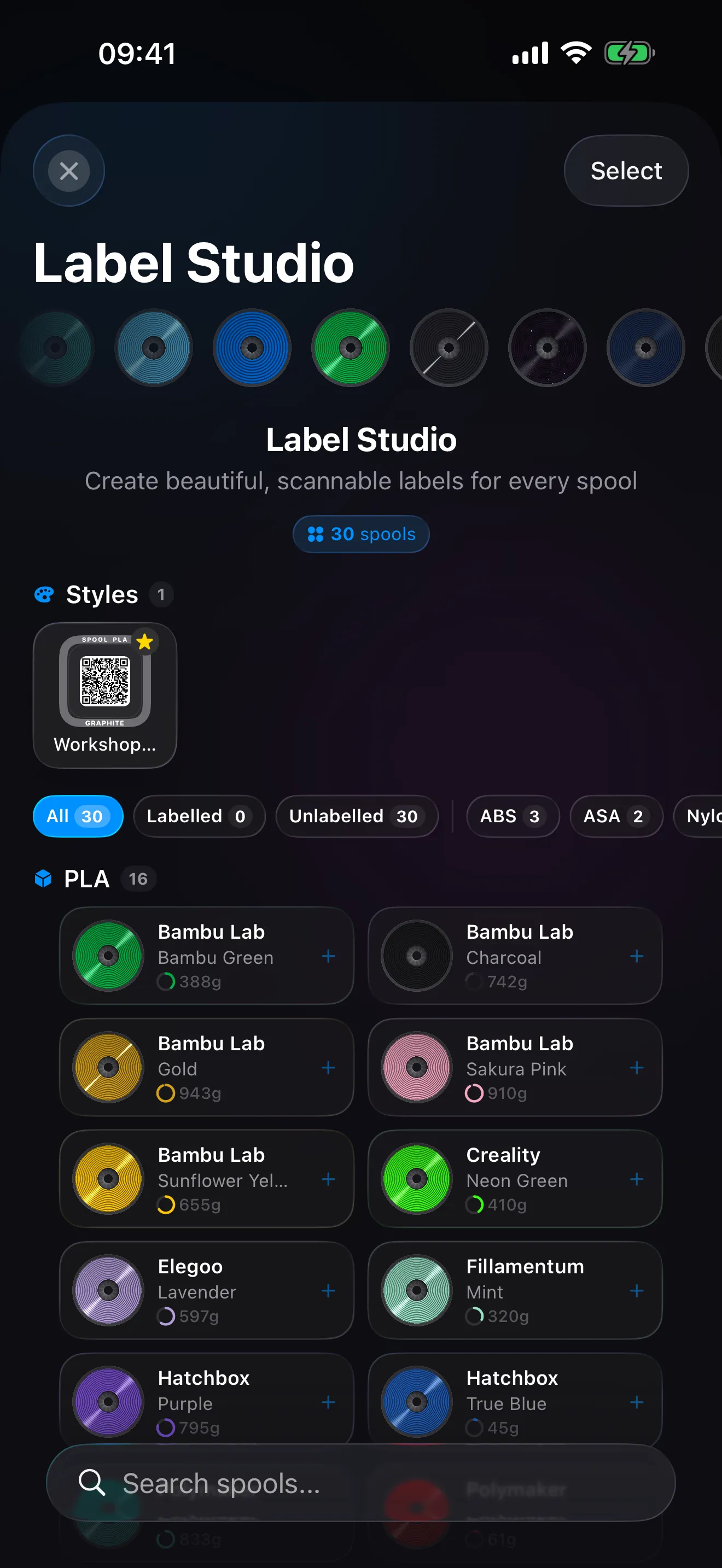
Label Studio in Spool on iPhone: a saved label style on the shelf and the spool gallery grouped by material

Label Studio and the print queuePro

Label Studio is the design tool for QR labels: shapes, complication slots for weight, dates, temperatures and more, text placement and QR style, with saved styles to reuse. Batch Print queues spools from the Add Spool page, the spool detail or the dashboard's selection mode and prints them all at once across Sticker Sheet, A4 Grid or Thermal Roll, including fixed die-cut thermal stock. The queue persists between sessions. Free users preview shape, colour, text and complications; saving and printing need Pro.

From the help pagesWhat is the Label Studio?

A full design tool for your QR labels. Choose shapes (round, squircle, square, rectangle, or frameless), fill complication slots with data like Weight, Date, Nozzle Temp, Bed Temp, Diameter, Hex Code, Product Line, or Custom Data in upper and lower zones, pick a text placement style, and choose a QR style. Free users can preview the shape, colour, text, and complication options; the QR style options, saving, and printing require Pro.

Intelligence

The numbers behind the shelf: cost, energy, material and hardware.

See it on the home page
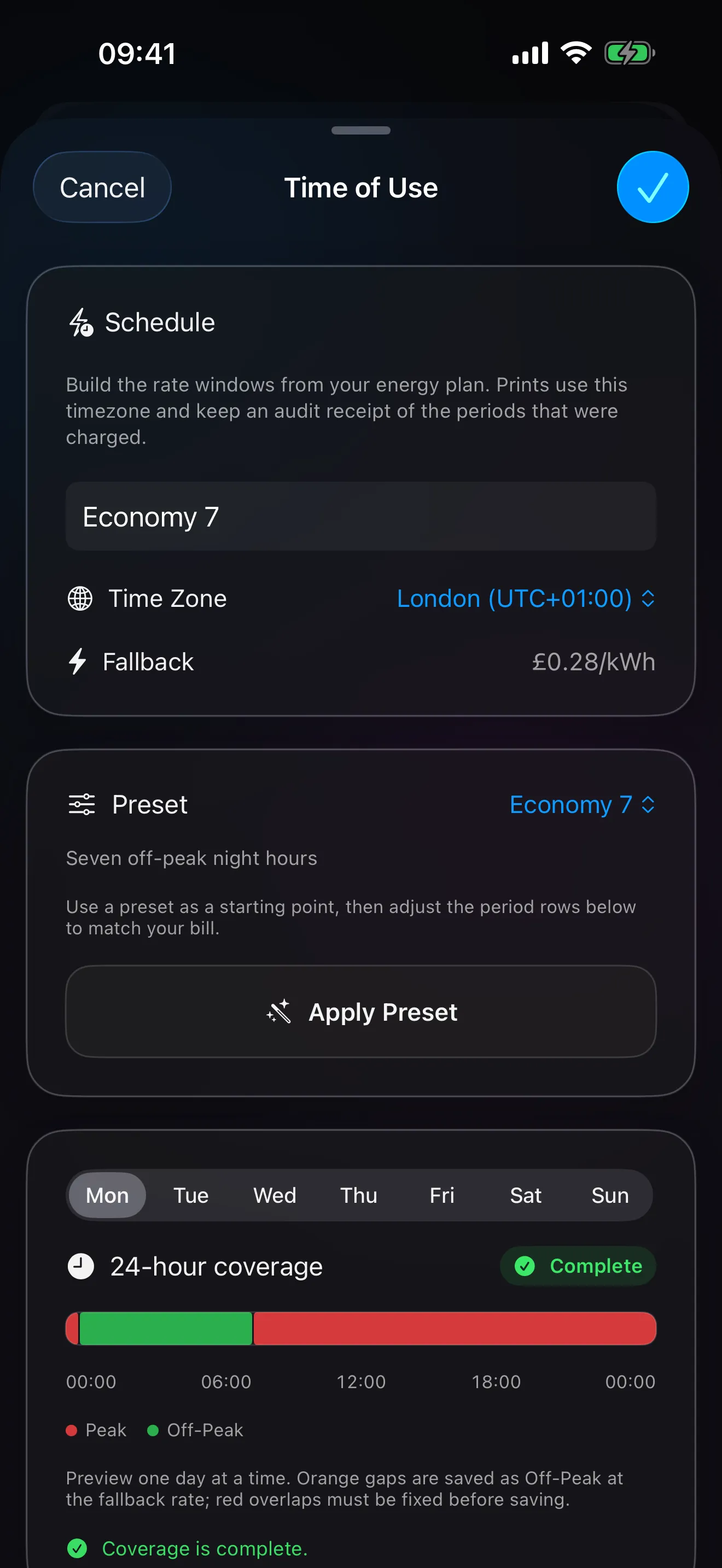
The Time of Use schedule editor in Spool: an Economy 7 schedule with its peak and off-peak windows and the 24-hour coverage bar

Energy tariffs

Switch Energy Pricing from Flat to Time of Use and build a schedule of rate windows, or start from a preset for common tariffs and adjust the rows to match your bill. A 24-hour coverage bar shows the day at a glance, uncovered time falls back to your default rate, and the schedule is anchored to a time zone so a print logged while travelling is still priced on your home clock. Tariffs that sometimes pay you to use power take a negative rate. The Energy dashboard then shows what off-peak printing saved.

From the help pagesWhat is Time of Use pricing?

If your electricity tariff charges different rates at different times of day (for example a cheap overnight rate and a pricier daytime rate), Time of Use mode prices each print against those windows instead of one flat rate. Turn it on in Settings → Units & Currency → Energy Pricing.

Workshop

Dryers, AMS units and printers, and keeping them in good shape.

See it on the home page
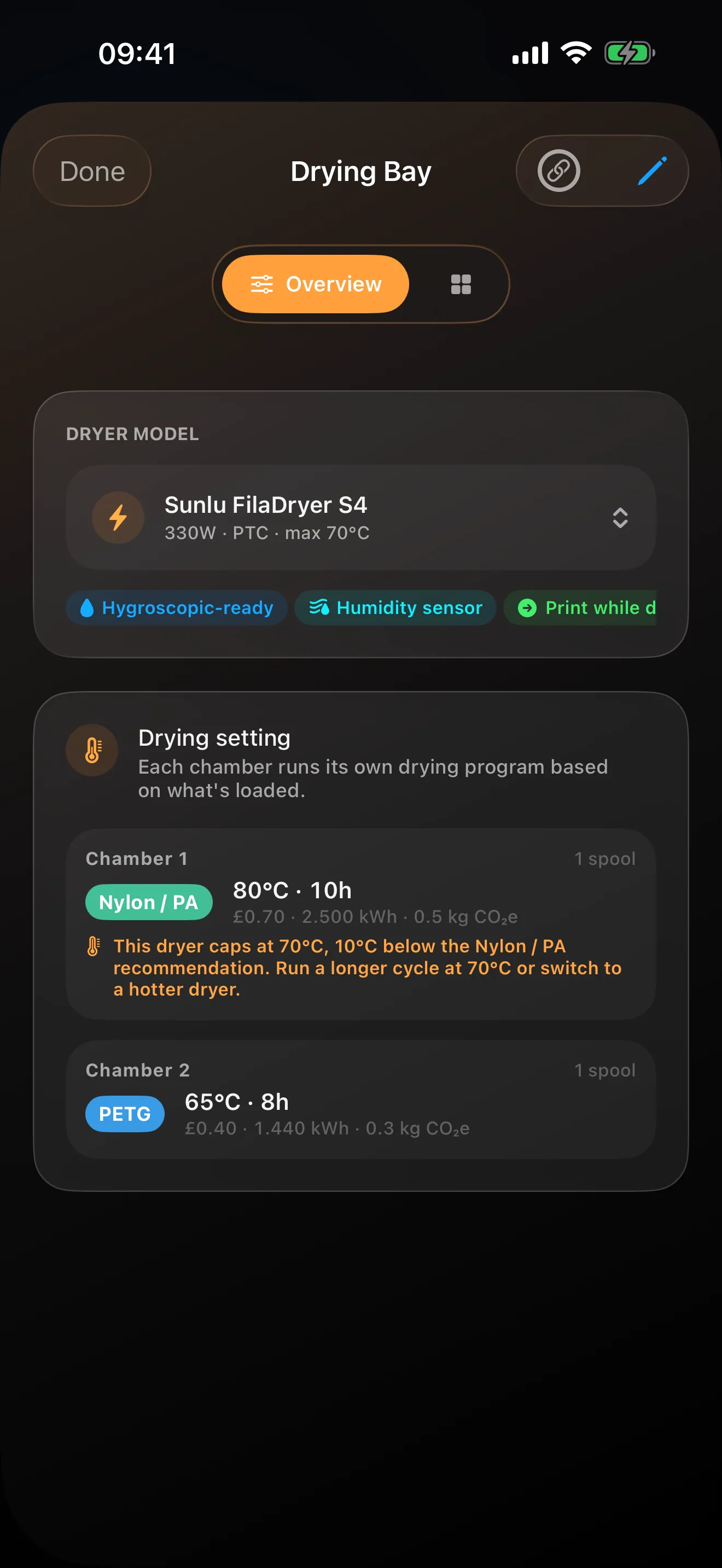
A dryer in Spool: its model and capability badges, and the drying setting per chamber with a recommendation for each
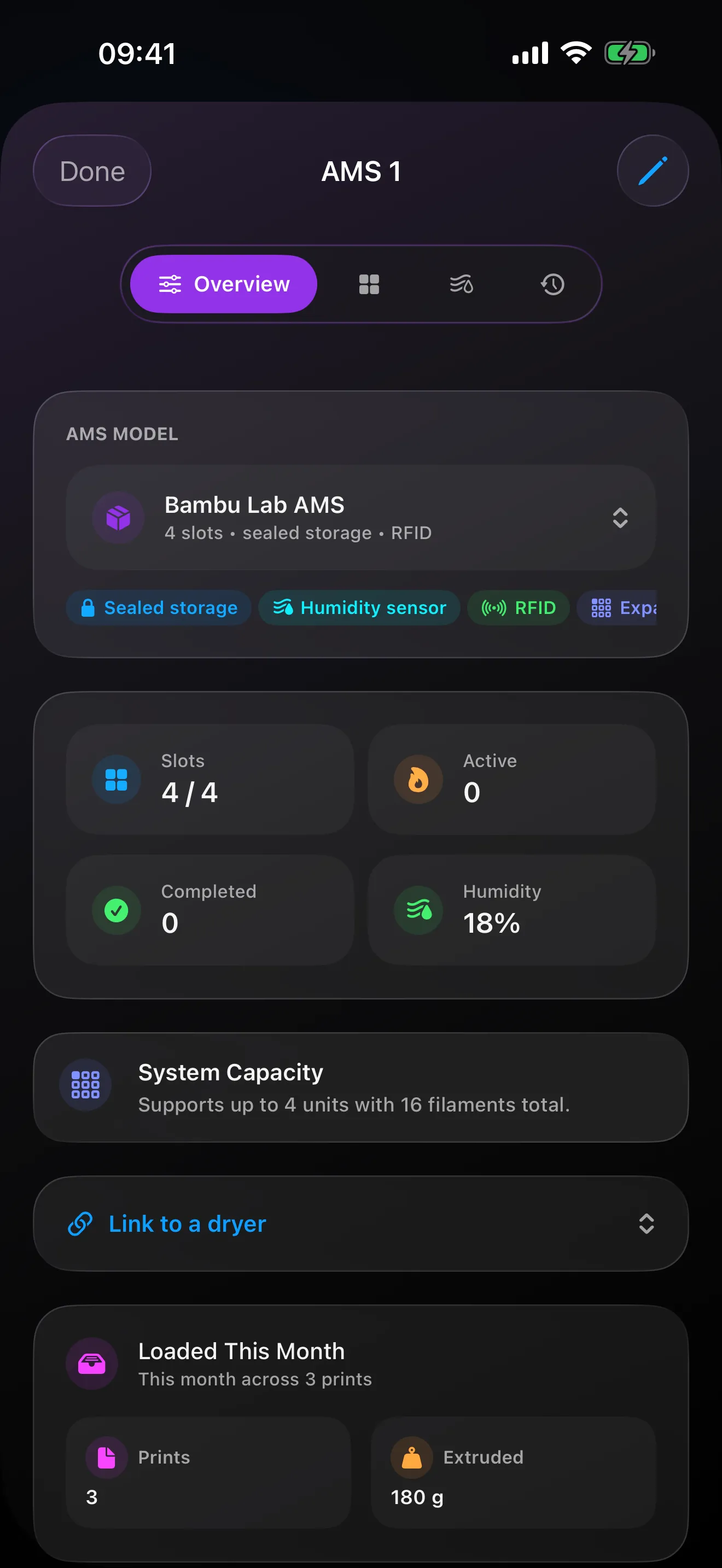
An AMS in Spool: its model and capability badges, slots, humidity reading and what it loaded this month

Drying and humidity

Open a spool, a dryer or an AMS that can heat and start a cycle: Spool picks the preset for the material, pre-fills its temperature and duration, and counts the cycle down. Multi-chamber dryers get a recommendation and a cycle per chamber. A dryer with a humidity sensor, or a sealed AMS, has a humidity card: enter the reading from its display, see it against a target band for the spools loaded right now, and the readings are kept as history. When you log a print, a spool dried inside its material's window is marked as dried.

From the help pagesHow does the Drying Tracker work?

Open any spool, dryer, or active-drying AMS and start a drying session. Spool picks the right preset from the material automatically (PLA, PETG, TPU, Nylon / PA, ABS / ASA, PC, or PVA) and pre-fills its temperature and duration; tune either before starting. Spool keeps a per-spool history of every cycle and surfaces the most recent run when you log a new print.

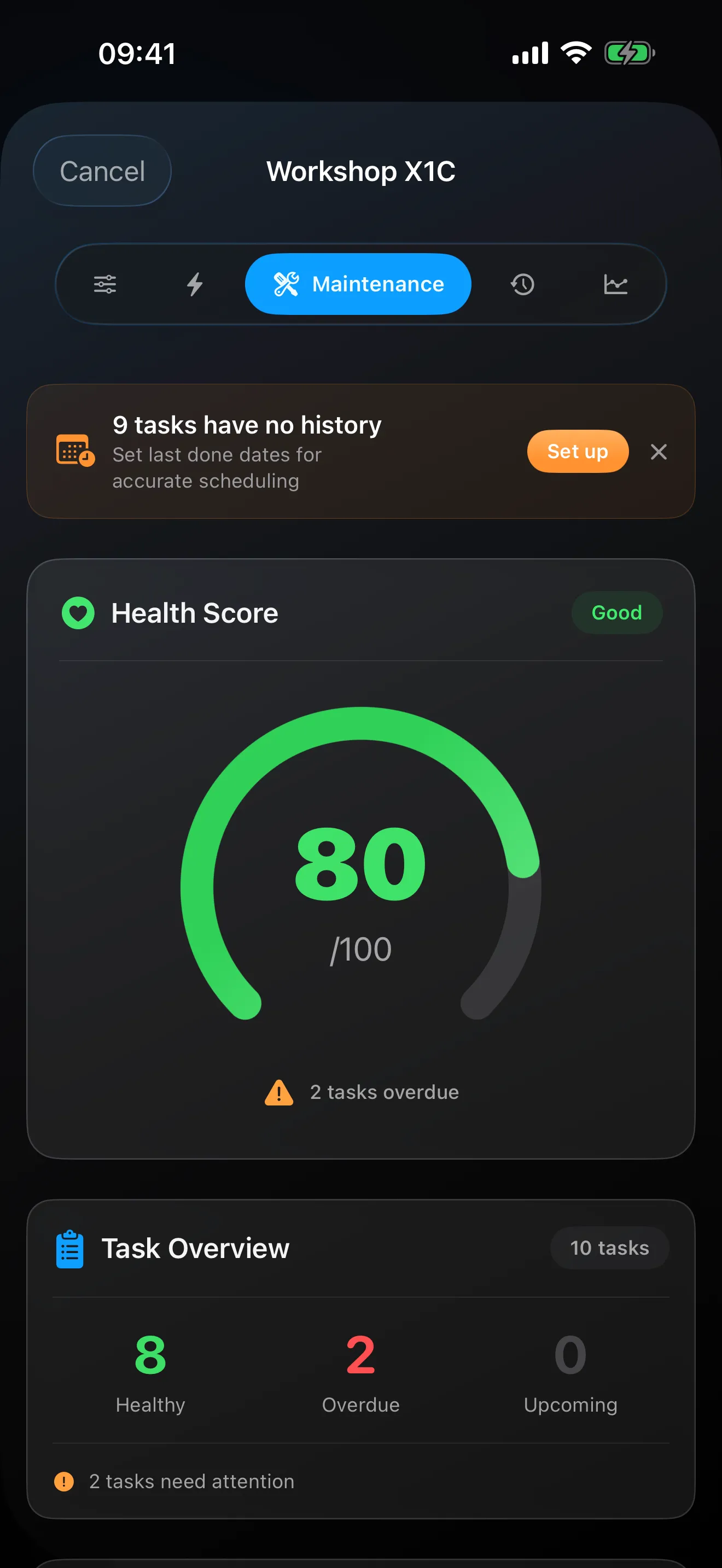
A printer's maintenance schedule in Spool with its health score and due tasks

Maintenance and health score

Each printer comes with built-in maintenance tasks, from the manufacturer's guide for popular models and a standard set for the rest, and a health score that drops with each overdue task and returns to full when they are done. Reminders are a Pro feature: a notification when a task is due, completed from the notification itself, and when a task is overdue a Live Activity on the Lock Screen and, on iPhones that have one, in the Dynamic Island shows the most urgent one with a Done button. A Home Screen widget shows the score and the most urgent task.

From the help pagesWhat is the printer health score?

A percentage that reflects how up-to-date your maintenance is. Each overdue task drags the score down. Complete all tasks and it returns to 100%. The score appears on the Workshop card, the Maintenance Widget, and the Live Activity.

SpoolTag

Physical tags and labels that open the right spool.

See it on the home page
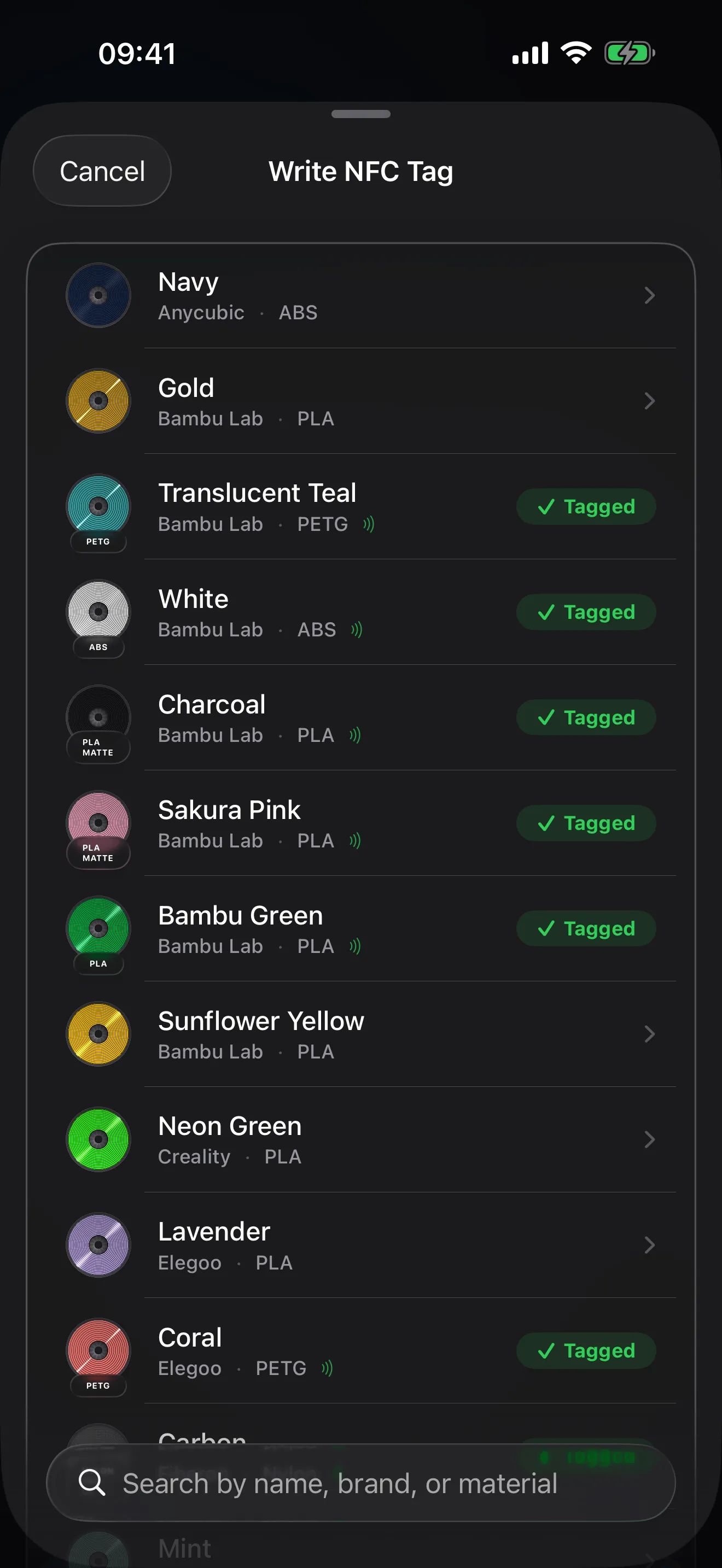
Writing an NFC spool tag in Spool: the spool list with tagged spools marked

NFC and QR tags

Stick an NFC sticker on a spool and write it from Spool, or print a QR label, and scanning it opens that exact record. Spool writes its own tags and labels, and reads and writes filament tags in more than one format. Batch Tagging walks a whole box of new tags: it shows which spool is next, you tap the tag, and it moves on.

From the help pagesWhat is a SpoolTag?

A SpoolTag links your physical spool to the app. Stick an NFC tag or QR label on the spool, then scan it to open that exact record. No searching, no scrolling.

More questions

Mac

The same data on a bigger screen, with a few things only a Mac can do.

See it on the home page
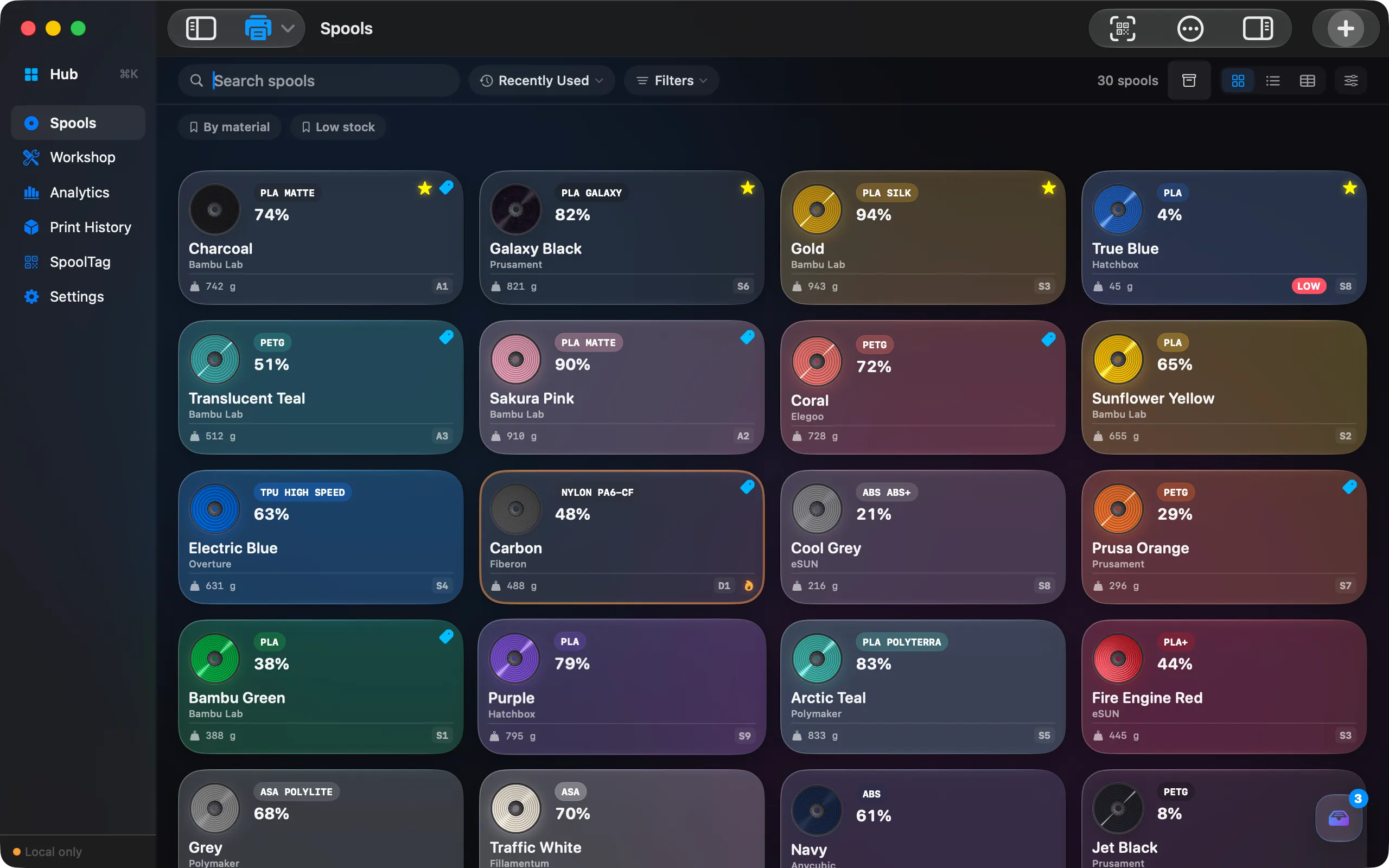
Spool for Mac: the Spools wall with sidebar, search, saved views and every spool as a card

Spool for Mac

A native Mac app with your inventory, Workshop, analytics, labels and the Print Tray. Drag a spool between storage locations, scan labels with Continuity Camera, drag a sliced file onto the window, and point Spool at the folder your slicer exports to so freshly sliced files turn up in the Print Tray on the Mac and on your iPhone; not every slicer’s files can be read yet. Same iCloud data, and one Pro covers every device on your Apple ID.

From the help pagesWhat can the Mac app do?

Your inventory, Workshop, analytics, labels, and the Print Tray are all there. Drag a spool between storage locations, scan labels with Continuity Camera, and press \u{2318}K to reach any tool. The Mac also adds the watched slicer folder, so freshly sliced files turn up in the Print Tray on their own. AR Inventory Mode stays on iPhone, since it needs the iPhone's live camera scanner.

Data and privacy

Where your data lives and how it travels.

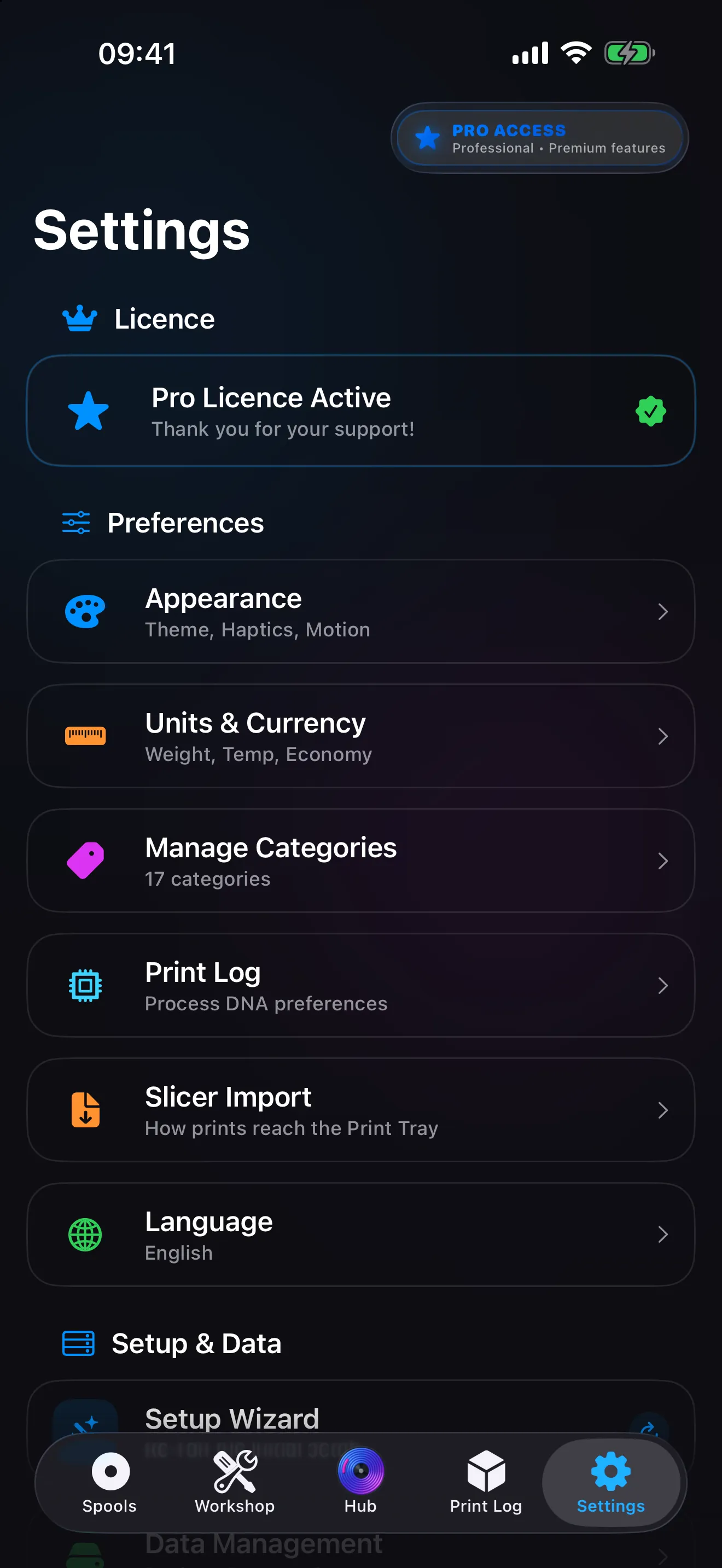
Settings in Spool, with the Language row and the Setup & Data section that holds Data Management

iCloud sync, no account

Spool does not ask you to sign up. Everything is stored in your own iCloud and syncs to every device signed into that account. Data Management in Settings shows the live sync state and, when sync hits a problem, names it: iCloud storage full, a sign-in that needs attention, or changes still waiting to upload.

From the help pagesHow do I check iCloud sync status?

Go to Settings → Data Management. The sync row shows the live state, and when sync hits a problem, Spool names it: iCloud storage full, a sign-in that needs attention, or changes still waiting to upload. You see what to fix instead of watching a spinner.

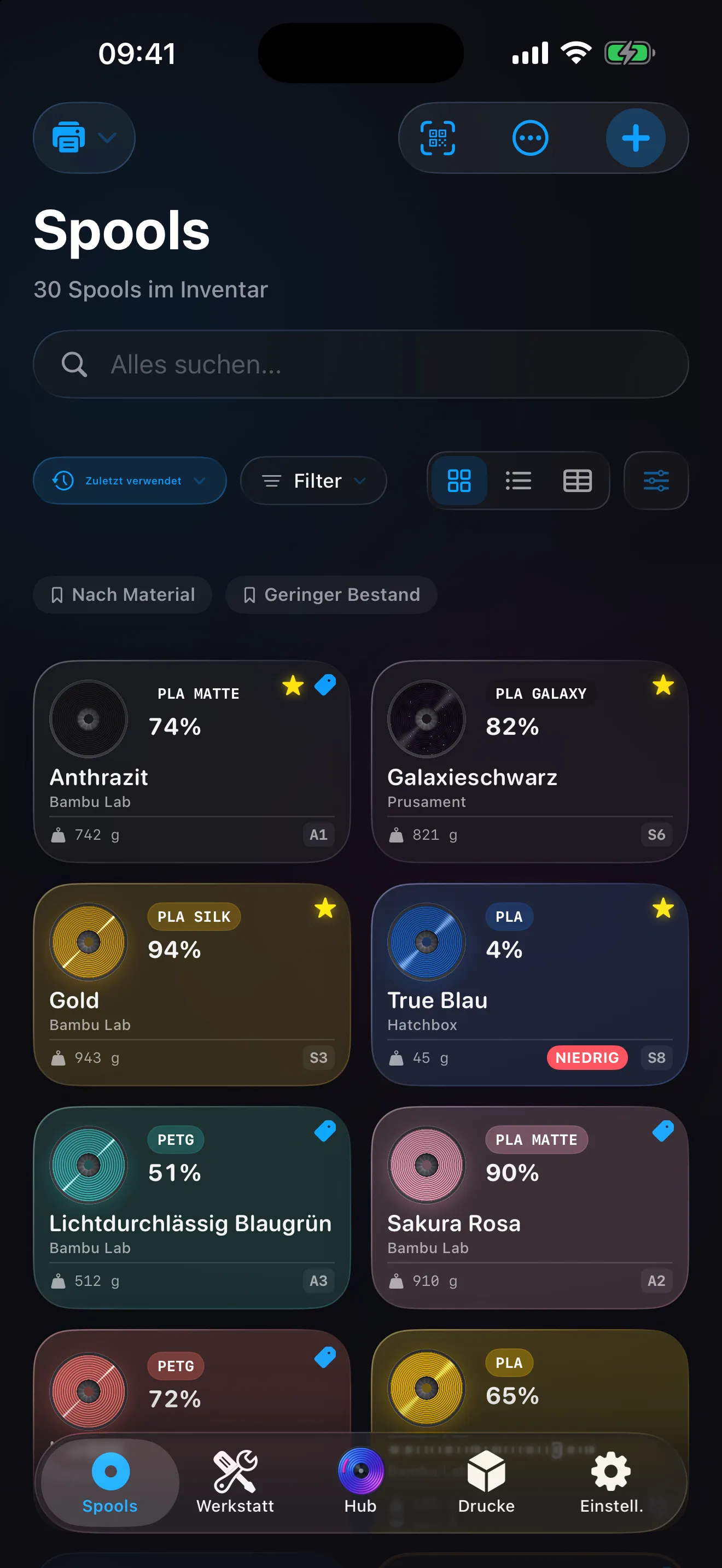
The Spools wall in Spool with the interface in German

In your language

Spool follows your device language and can be switched in Settings, Language. The interface, the help pages and the filament colour names are translated; material codes, brand names and product lines stay as printed on the box.